Ubuntu Tutorials - Herong's Tutorial Examples - v1.25, by Herong Yang
GNOME Application - Terminal
This section provides a tutorial example on how to use the GNOME application 'Terminal' to run commands interactively.
"Terminal" is a GNOME application that allows you to run commands interactively in a shell interface.
Double-click on "Terminal" on the application launch screen (All tab) to open the "Terminal" application.
You can now type in commands to run them on your Ubuntu computer:
herong$ who
herong   :0           2025-12-14 14:27 (:0)
herong   pts/3        2025-12-23 09:44 (tmux(28757).%0)
herong   pts/7        2025-12-24 12:12 (tmux(28757).%1)

herong$ free
          total      used      free   shared  buff/cache   available
Mem:    3709516   1123068   1030600   151544     1555848     2177444
Swap:    999420    707172    292248
By default, you need to use Shift-Ctrl-C and Shift-Ctrl-V to copy and paste text in Terminal windows. But you can change them in "Terminal > Preferences > Shortcuts".
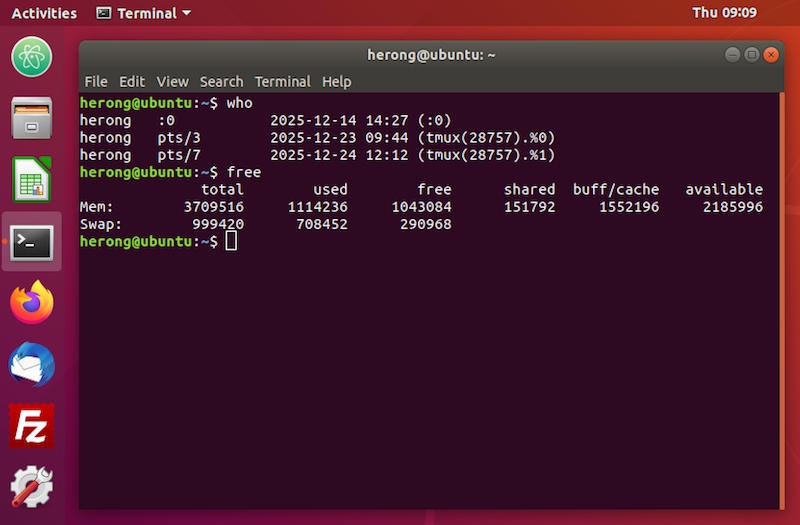
Table of Contents
Introduction to Ubuntu Systems
►GNOME - Desktop Interface and Environment
gnome-tweaks - The GNOME Tweak Tool
GNOME Application - Image Viewers
GNOME Application - Video Players
Shell - The Command-Line Interpreter