Ubuntu Tutorials - Herong's Tutorial Examples - v1.25, by Herong Yang
GNOME Application - Settings
This section provides a tuturial example on how to use the GNOME application 'Settings' to modify system settings.
"Settings" is an important GNOME application that allows you to manage system settings. You should review and modify them to make your system more secure and easier to use.
1. Double-click on "Settings" on the application launch screen (All tab) to open the "Settings" application.
2. Or click on the menu icon at the end of the top status bar. Then click on the settings icon on the left of the bottom line to open the "Settings" application.
3. Open each category in the left panel. Review and modify settings as suggested below.
- Wi-Fi > Aeroplane Mode: ON - Disconnect from the Internet to reduce security risk. You can turn it OFF, only when you need to access the Internet.
- Bluetooth: OFF - Stop bluetooth communication to reduce security risk. You can turn if ON, only when you need it.
- Notifications > {application}: OFF Turn off notifications on all applications to improve performance.
- Online Accounts - Add Google or Facebook account if you want to.
- Privacy > Screen Lock: On; Location Services: Off; Usage & History: Off; Purge Trash & Temporary Files: On; Problem Report: Never; Connectivity Checking: Off - Make your system more secure.
- Sharing > Screen Sharing: Off; Remote Login: Off - Make your system more secure.
- Power > When the Power button is pressed: suspend - Avoid reboot your computer, if you use it daily.
- Devices > Screen Display > Night Light: On - Make it easier for your eyes.
- Devices > Keyboard - Modify keyboard shortcuts to your preferences.
- Mouse & Touchpad - Two-finger scrolling: ON - Make it easier to browse long Web pages.
- Details > About > Check for updates - Make sure your system is up to date.
- Details > Date & Time - Reset date and time, if you are traveling to a different timezone.
- Details > About > Users - Change your password regularly.
- Details > About > Default Applications - Change to your favorite application to open different types of files.
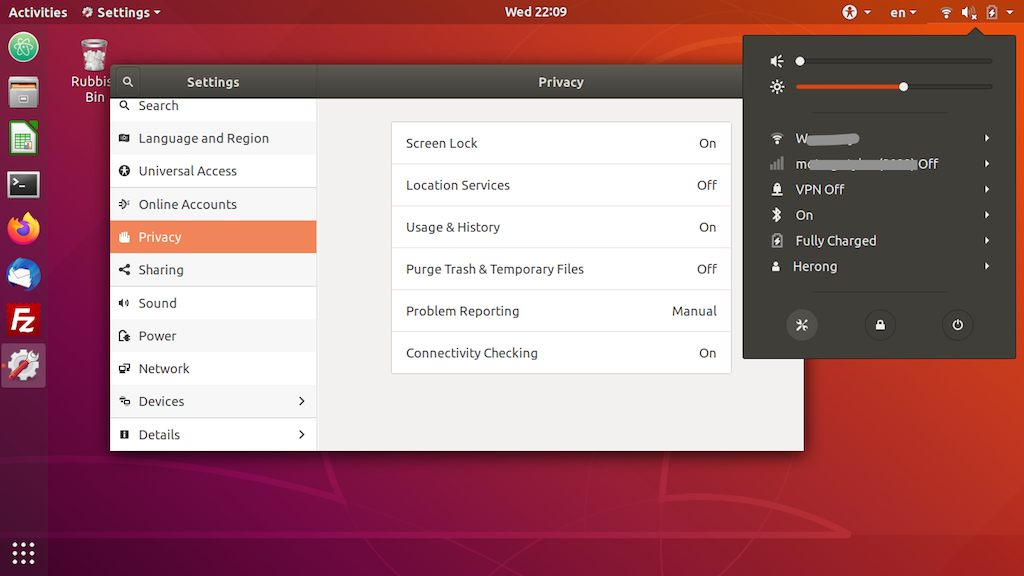
Table of Contents
Introduction to Ubuntu Systems
►GNOME - Desktop Interface and Environment
gnome-tweaks - The GNOME Tweak Tool
GNOME Application - Image Viewers
GNOME Application - Video Players
Shell - The Command-Line Interpreter