Ubuntu Tutorials - Herong's Tutorial Examples - v1.25, by Herong Yang
GNOME Application - Files
This section provides a quick introduction on the GNOME application 'Files' for browsing files and directories.
"Files" is another important GNOME application that allows you to browse and open files on your hard-disk.
Double-click on "Files" on the application launch screen (All tab) to open the "Files" application.
Here are some nice features provided by "Files":
1. Side bar for favorite directories - You can drug any directory to the side bar to quick access.
2. Search for files and directories - The search box is accessible from the title bar.
3. List view of directories (folders) - You can turn it on in "Files > Preferences > Views".
4. Icon view - Icon view is accessible from the title bar.
5. Open files with default application - Double click on a file opens it in its default application based on file name extension.
6. Ctrl-C and Ctrl-V - You can copy and paste files/directories to different locations.
7. Drag and Drop - You can click and hold down the mouse button to drag files/directories to a new location.
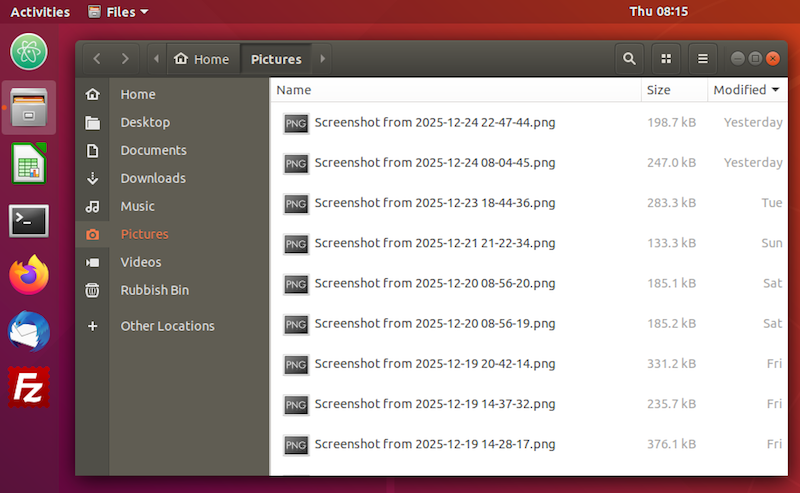
Table of Contents
Introduction to Ubuntu Systems
►GNOME - Desktop Interface and Environment
gnome-tweaks - The GNOME Tweak Tool
GNOME Application - Image Viewers
GNOME Application - Video Players
Shell - The Command-Line Interpreter