Java Swing Tutorials - Herong's Tutorial Examples - v4.32, by Herong Yang
Creating Image Buttons with javax.swing.JButton Class
This section provides a tutorial example on how to create an image button with the JButton class and the ImageIcon class.
You can also create a button with your own image. Here is a sample program:
/* JButtonIcon.java
 * Copyright (c) 1997-2024 HerongYang.com. All Rights Reserved.
 */
import java.awt.*;
import javax.swing.*;
public class JButtonIcon {
   public static void main(String[] a) {
      JFrame f = new JFrame("My Icon Button");
      f.setDefaultCloseOperation(JFrame.EXIT_ON_CLOSE);
      JButton b = new JButton(new ImageIcon("java.gif"));
      f.getContentPane().add(b);
      f.pack();
      f.setVisible(true);
   }
}
If you run this example, you will get:
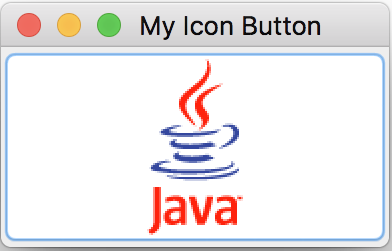
Note: The ImageIcon class is used to create a button with an image.
Table of Contents
Introduction of Java Swing Package
Graphics Environment of the Local System
Creating Buttons with javax.swing.JButton Class
►Creating Image Buttons with javax.swing.JButton Class
Button Action Handler at the Component Level
Button Action Handler at the Frame Level
Mouse Click Handler at the Frame Level
JCheckBox - Swing Check Box Class
JRadioButton - Swing Radio Button Class
JTextField - Swing Text Field Class
JComboBox - Swing Combo Box Class
Menu Bar, Menus, Menu Items and Listeners
Creating Internal Frames inside the Main Frame
Layout of Components in a Container
JEditorPane - The Editor Pane Class
SwingWorker - The Background Task Worker
AWT (Abstract Windows Toolkit)